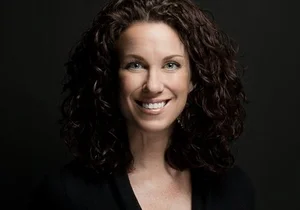
Photoshop Compositing Tutorial: Replace Backgrounds Fast With Harmonize
Compositing used to feel complicated. Now it can be fast, repeatable, and realistic, even if you are not doing heavy retouching.
In this tutorial, I walk through a simple portrait and headshot compositing workflow in Photoshop. You will replace the background, match the light, build believable shadows, match depth of field, and then finish with Photoshop Harmonize to help unify the scene.
This post includes the video, plus a clear checklist you can follow every time.
What you will learn in this compositing workflow
How to choose a background first so your photoshoot matches the scene
How to cut out your subject with Select Subject and a layer mask
How to create light falloff with Curves using a selection based mask
How to build a quick drop shadow that matches your light direction
How to blur the background to match depth of field
How to use Harmonize to blend tone, color, and lighting
How to finish with color grading and a touch of grain
Before you start, one decision makes everything easier
Choose your digital background before you photograph your subject.
That one choice helps you match three things during the shoot:
Light direction
Exposure and contrast
Camera angle and perspective
Composites look believable when the subject and background meet somewhere in the middle. You are not forcing one to match the other. You are guiding both toward a shared reality.
There is no single correct composite. The goal is believable light and consistent depth of field.
Use this as your repeatable checklist.
Step 1, cut out your subject
Click Select Subject
Add a layer mask
Keep your original subject layer on gray nearby while you refine, it helps you recover tiny details like hair edges or an earlobe
Step 2, match the light direction with light falloff
If your subject is lit from camera right, the background should usually get darker behind them and slightly toward camera left.
Here is the method from the video:
Make a selection of the area you want to darken
Add a Curves adjustment layer
Photoshop converts your selection into the Curves layer mask
Feather the mask so the falloff blends naturally
Step 3, build a believable drop shadow
A drop shadow anchors the subject into the scene.
Quick method:
Load the subject mask as a selection by Command or Control clicking the mask thumbnail
Add a solid color fill layer
Pick a dark tone that fits the scene, not pure black
Soften it, feather it, and nudge it slightly to match the light direction
Step 4, match depth of field
Depth of field is a realism multiplier.
Duplicate the background layer with Command or Control J
Convert the duplicate to a Smart Object
Apply a subtle blur, Filter, Blur, Gaussian Blur
Keep it gentle, you want lens behavior, not a foggy background
Step 5, run Harmonize
Harmonize helps blend color, tone, and lighting so the subject feels like it belongs in the scene.
In the video, Harmonize generates three options. Review each, choose the most realistic, then reduce opacity a little if it feels too strong.
Tip
Harmonize works best when you give it a head start. If your falloff and shadow structure already make sense, Harmonize usually looks more natural.
Step 6, color grade and add grain
Finish the composite by treating it like one image.
Color grade globally so the subject and background share a common look
Add a touch of grain for texture and cohesion
Quick print check, do this before you print large
For web use and small prints, this workflow is usually enough.
For large prints, zoom in and inspect:
Hair edges and flyaways
Jawline and ears
Shadow transitions
Any halos or hard mask edges
Blur strength relative to the subject
Refine those details before sending to print.
If you want a future tutorial, tell me what you struggle with most, masking, shadows, color matching, or depth of field. I will build the next one from the replies.